GitHub & Git
Amp uses Git to bring your code into an orb and to get the agent’s changes back out. For repositories on GitHub, Amp signs in as you through a GitHub App connection. The agent can then clone private repositories, push branches, open pull requests, and read CI status, and you never have to create or paste a token. This page explains how the connection works, what Amp uses it for, and how commits made in orbs are attributed and signed.
Connect GitHub
Open Settings → Integrations and click Connect GitHub.
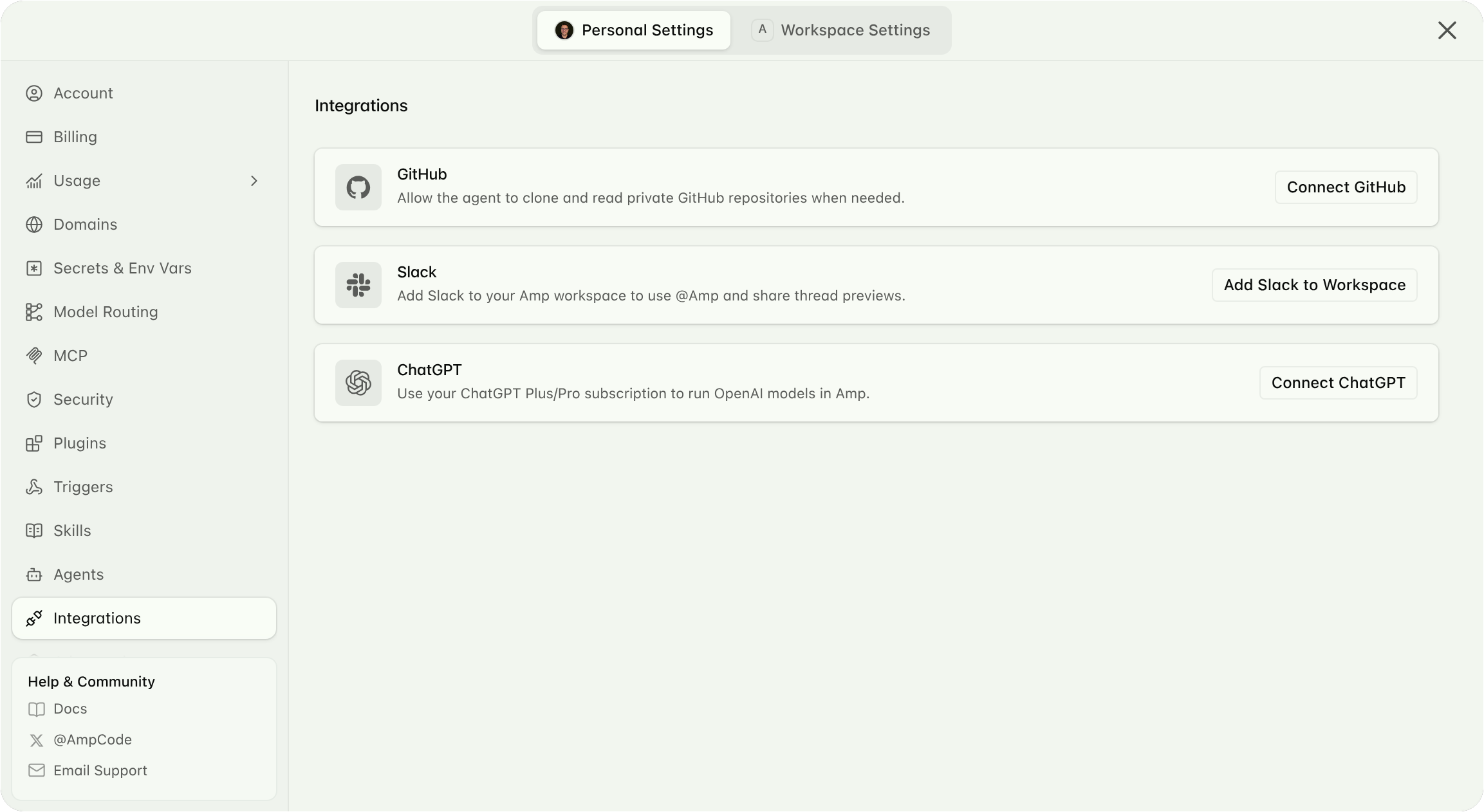
GitHub walks you through two steps:
- Authorize Amp. This links your GitHub account to your Amp account. Amp uses the authorization to act as you when it talks to GitHub.
- Install the Amp app. Pick the account or organization that owns your repositories, then choose All repositories or Only select repositories. Amp can reach exactly the repositories you select here, and only if your own GitHub account can reach them too.
If you already installed the app, for example because a teammate set it up for your organization, GitHub skips the second step. If your organization requires approval for third-party apps, an organization owner has to approve the installation before Amp can see its repositories.
Once connected, the card shows your GitHub login. Click the info icon to see which accounts the app is installed on and whether it covers all or selected repositories.

- Configure opens GitHub’s account picker for the Amp app. Pick an account or organization where Amp is already installed to add or remove repositories, or pick another organization to install Amp there. An organization owner may need to approve the installation.
- Re-authenticate appears when the connection has expired or was revoked on GitHub. Click it to sign in again; your repository selection stays as it is.
- Disconnect deletes the token Amp holds for you. It does not uninstall the app from GitHub. To remove the app itself, uninstall it from your GitHub application settings.
What Amp Uses the Connection For
- Creating projects. The New Project dialog lists the repositories your connection can reach. See Projects.
- Cloning into orbs. Before a new orb starts, Amp checks that your connection can reach the project’s repository and then clones it into the orb.
- Pushing and pull requests.
git pushandghin the orb run as you. Pushes, branches, and pull requests show up on GitHub under your account. - Commit, pull request, and CI details in threads. When the agent mentions a commit or pull request, the thread shows a preview with its status. Puck uses the same connection to check CI for you.
- The Librarian. The Librarian subagent reads your private repositories through your connection, in addition to all public code on GitHub.
Public GitHub repositories clone into orbs without a connection. Everything else on this list needs one.
Amp can only write to a repository when the Amp app is installed on the account or organization that owns it and the installation includes that repository. This is true even if your GitHub account is an admin of the repository.
GitHub listeners
GitHub listeners are experimental and require access to the github-automations feature flag
in a workspace. This is not a self-service toggle in Experimental Features.
Ask Amp to listen for GitHub events and save instructions for what to do when they arrive. For example, in the thread where you opened a pull request:
Amp manages the repository webhook and verifies incoming GitHub signatures. You do not need to write a plugin, copy a webhook URL, or keep a polling schedule running.
Requirements
Connect your GitHub account and include the repository in the Amp GitHub App installation. The installation must have approved read and write access to repository webhooks. If GitHub requests approval for updated app permissions, an installation owner must approve it.
You can install the app on your personal GitHub account for all repositories or selected repositories. A workspace’s organization installation does not cover your personal repositories. Amp checks both your connected account’s access and the app’s installation on the repository.
To receive events in an existing thread, use a thread you created in the active workspace. The thread must not be archived and must use an Amp agent, not an external agent. A thread on a local runner still needs that runner available to execute tools.
Supported events
- Pull request listeners receive new conversation comments, submitted reviews, and inline review comments on a specific PR.
- CI listeners follow a specific commit. They can watch GitHub Actions workflow completions, named checks, or commit status contexts. A single completion does not mean every check passed.
- Issue listeners receive new comments on a specific issue.
- Opening listeners receive newly opened issues or pull requests, optionally filtered by a label present at opening. Adding the label later does not trigger the listener.
Any workspace member can create a listener that starts a new orb for each matching issue or PR. Choose a workspace project for the same repository and tell Amp what each new thread should do. Amp subscribes the new thread to comments on its source issue, or comments and reviews on its source PR. New comments and CI events do not start new orbs.
Automatic follow-ups
When these tools are available, Amp’s instructions tell it to subscribe after it opens a PR or pushes, unless you opt out. Opening a PR adds comment and review listeners and monitors workflow completions for its head commit. Pushing adds workflow monitoring for the exact pushed commit. You can check the subscriptions in Settings → Listeners.
Automatic CI monitoring follows the latest push from that thread on each branch. Listeners you request explicitly remain separate. Automatic comment listeners stop when the issue or PR closes and resume if it reopens, unless you paused them. Deleting an automatic listener opts out of automatic subscriptions for that thread and target. You can ask Amp to subscribe again explicitly.
Saved instructions use the authorization you already gave Amp. Subscribing does not grant permission to push changes or act on instructions in a GitHub comment.
Manage listeners
Open Settings → Listeners to view your thread listeners and workspace rules in one table. The Threads column links to the receiving thread or shows New orb for rules that create threads. Use Edit to change a listener’s name, saved instructions, or event filter. You can pause or resume your listeners, or ask Amp to delete them. Only the user a listener runs as can manage it, including listeners that start new orbs.
The Deliveries tab shows event delivery history and receiving threads. It does not record edits or pause changes.
A listener is not ready until Amp finishes setting up the GitHub webhook. Check its status for setup or access problems. A delivery marked Delivered means the thread accepted the event, not that the agent finished its work.
Archiving a receiving thread stops its deliveries. Amp removes its managed repository webhook when no active listeners need it. It leaves other webhooks alone.
How Orbs Authenticate to GitHub
Amp does not place a long-lived token in the orb. When the orb starts, Amp clones the repository
into /home/user/workspace/repo with a shallow, single-branch clone. The credential for that clone
applies only to the clone command and is discarded afterwards.
After that, whenever the agent runs a Git command that talks to GitHub, Git asks a credential helper, and the helper asks Amp for a short-lived token for your account. This means:
- The agent can fetch, push, and clone any repository on github.com that your connection can reach, not only the project’s repository.
- The
ghCLI is preinstalled and gets its token the same way, sogh pr createandgh run viewwork withoutgh auth login. - SSH URLs such as
git@github.com:owner/repo.gitare rewritten to HTTPS, so SSH keys are not needed. - Each Git command that contacts GitHub asks Amp for a current token. The token is never written to disk or included in the project snapshot that later orbs start from.
- Branch protection rules and organization permissions apply exactly as if you had pushed from your own machine.
Threads that run on a runner or in a local CLI session use the Git configuration and credentials of that machine. Amp does not inject credentials there.
Commit Identity
A Git identity is the name and email that appear as the author of the commits the agent makes in orbs. Manage yours under Settings → Signing Keys → Git Identities. Your Amp account identity is available by default. To commit under another name and email, click Add Identity. Amp sends a verification link to that email, and the identity becomes usable once you confirm it.
Your Personal Default applies to your personal projects. To use a different identity for one project, choose it under Git Identity on that project’s page.
For workspace projects, workspace admins choose one policy for the whole workspace under Workspace Settings → Projects:
- Amp makes
Amp <amp@ampcode.com>the author and adds the thread creator as a co-author through aCo-authored-by:trailer. - Amp Account uses each thread creator’s Amp account identity.
- User Choice lets each member pick one of their verified identities.
When you are the author, the agent adds a Co-authored-by: Amp <amp@ampcode.com> trailer to mark
the commit as made with Amp. To leave it out, set AMP_DISABLE_AMP_COAUTHOR_TRAILER=1 as a
personal, project, or workspace environment variable. The Credit Amp as Co-author switch in a project’s settings sets the project variable for you. A
personal variable applies to every thread, including threads on runners that have no project. On
a runner, these variables apply only when the runner was
started with --amp-env; without it, set amp.git.commit.coauthor.enabled to false in the runner’s settings file
instead. Commits the agent makes through its shell also carry an Amp-Thread-ID: trailer with the
URL of the thread, so anyone reading the Git history can open the conversation that produced the
change.
Signed Commits
Amp can sign the commits the agent makes in orbs. Amp generates an SSH keypair for you and keeps the private key encrypted on Amp’s servers. Git in the orb calls Amp to sign each commit, so the private key never enters the orb.
Open Settings → Signing Keys and turn on Sign Git Commits in Orbs. Amp signs a commit only when the selected Git identity uses an email you have verified, so commits made under the Amp identity are not signed.
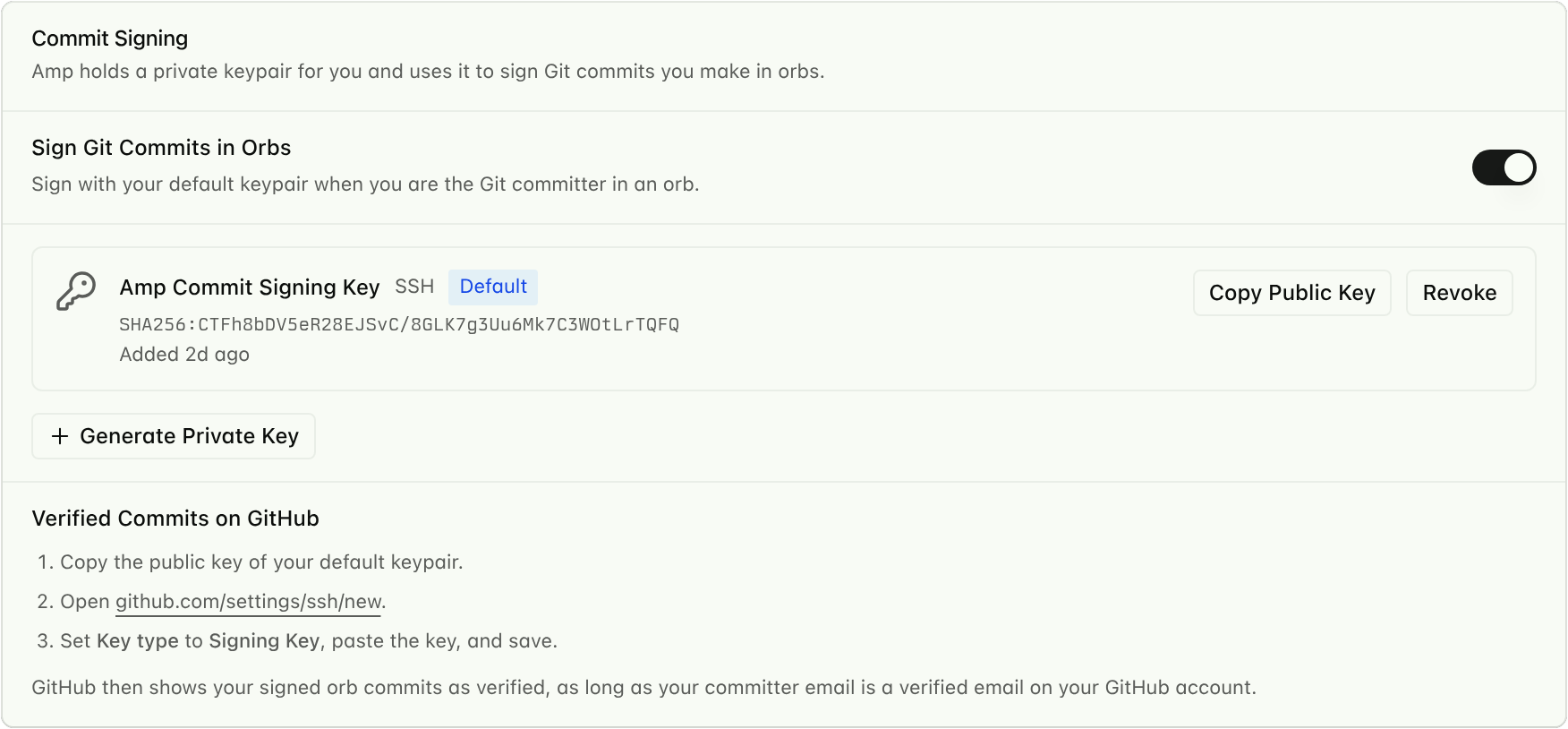
For GitHub to show the commits as Verified:
- Click Copy Public Key on your default keypair.
- Open github.com/settings/ssh/new.
- Set Key type to Signing Key, paste the key, and save.
GitHub also requires that the committer email is a verified email on your GitHub account.
Workspace Controls
Workspace admins can turn the GitHub integration off for the whole workspace in Workspace Settings → Integrations. The card also shows how many members have connected their GitHub account.

When the integration is off, members cannot connect GitHub, orbs cannot clone private GitHub repositories, and threads do not show commit or pull request previews. Existing connections stop working until an admin turns the integration back on.
Each member connects GitHub from their own personal settings. There is no shared workspace token, so every member only ever gets access to the repositories their own GitHub account can see.
Other Git Hosts
The GitHub connection is only for github.com. Other repositories work like this:
- Amp-hosted repositories. Choose Start From Scratch when you create a project and Amp hosts the repository for you. No setup is needed.
- Public repositories on other hosts. Paste the HTTPS URL when you create the project. Amp clones it without credentials.
- Private repositories on other hosts. The orb needs credentials to clone and push. See Configure Git.
GitHub Enterprise Server is not supported.
Troubleshooting
| Message or symptom | What to do |
|---|---|
| “No GitHub account connected” | Connect GitHub. |
| “GitHub connection appears stale or expired” | Click Re-authenticate on the GitHub card. This happens after you revoke Amp’s authorization on GitHub. |
| “Amp could not access this GitHub repository” | Check that the URL is correct. Then click Configure and add the repository to the app installation. For organization repositories, an owner may need to approve the app first. |
| “Your GitHub account is connected, but repository access is still required” | You authorized Amp but did not install the app. Click Repositories and pick the repositories Amp may access. |
| “GitHub connection is disabled by your workspace admin” | Ask a workspace admin to turn the GitHub integration on in the workspace settings. |
git push fails with 403 ... Permission to owner/repo.git denied | The Amp app is not installed on the account or organization that owns the repository, or the installation does not include it. Click Configure, pick that owner, and add the repository. This happens with public organization repositories too, because they clone without the app. |
| A push from the orb is rejected for another reason | The push runs as you, so the same rules apply as on your machine. Check branch protection and whether your GitHub account has write access to the repository. |
| Commits show as Unverified on GitHub | Add Amp’s public key as a Signing Key on GitHub, make sure the committer email is verified on your GitHub account, and use a Git identity other than Amp. |