Runners
You can start Amp threads remotely from ampcode.com on any machine where you
can run amp.
To do that, you need an Amp instance that serves as a runner.
Start a Runner
Run amp --no-tui to start a runner-only Amp instance. It waits for and runs remotely created
threads in the current directory without opening the TUI. To serve more than one directory, see Serve Multiple Directories.
Pass --runner-id <id> to give it a stable runner ID:
$ amp --no-tui --runner-id grandmas-garage-serverRunner IDs must be valid hostnames and are case-insensitive. Amp preserves the casing you provide.
To access the runner’s terminals from ampcode.com, pass --remote-control-terminal:
$ amp --no-tui --runner-id grandmas-garage-server --remote-control-terminalSpawning Runner Threads
Use amp -x with --executor runner:<id> to spawn a runner thread from the CLI:
$ amp -x "Run the tests and fix any failures" --executor runner:grandmas-garage-serverServe Multiple Directories
By default, a runner serves threads in the directory where it was started. One runner can also serve several directories, so you can pick any of them when you create a thread from ampcode.com.


These flags control which directories a runner serves:
| Flag | What it does |
|---|---|
--dir <path> | Serves one more directory. Repeat for each directory. |
--discover-dirs | Serves every Git checkout up to two levels beneath the current directory. |
--discover-dirs=<path> | Scans a different directory. Repeat to scan several. |
--discover-depth <levels> | Scans deeper than two levels. |
--discover-exclude <pattern> | Skips directories that match a .gitignore-style pattern. |
--no-serve-cwd | Disables automatic serving of the current working directory. |
Add Directories With --dir
Pass --dir <path> for each additional directory. Any existing directory works; it does not need
to be a Git checkout:
$ amp --no-tui --runner-id mac-mini --dir ~/code/amp --dir ~/code/sandcastleDiscover Git Checkouts
Pass --discover-dirs to serve every Git checkout found up to two levels beneath the current
directory:
$ cd ~/code
$ amp --no-tui --runner-id mac-mini --discover-dirs
On macOS and Linux, the runner watches for filesystem changes, so a repository you clone or a
worktree you add appears automatically without waiting for a periodic scan. Deleted checkouts
are removed automatically too. On other platforms, or if filesystem watching fails, the runner
rescans once a minute. Discovery skips hidden directories, node_modules, and symbolic links,
and stops at 200 checkouts.
Git worktrees are served like any other checkout. Discovery also reads each repository’s
worktree list (what git worktree list shows), so worktrees that live inside the checkout, such
as repo/.worktrees/<branch>, or under a bare clone, such as org/repo/worktrees/<branch>, are
served when they are beneath the scanned directory, however deep. A bare clone itself has no
working tree and is not served.
Scan Multiple Directories
Pass --discover-dirs=<path> to scan a different directory instead, and repeat the flag to scan
several. A --discover-dirs without a path among them still stands for the current directory:
$ amp --no-tui --runner-id mac-mini --discover-dirs=~/work --discover-dirs=~/code --discover-dirsWrite the path with =. A space-separated path would also be accepted, but --discover-dirs then takes any following argument, such as a subcommand, as the path.
Scan Deeper
Pass --discover-depth <levels> (1 to 10) to scan deeper. Discovery does not look inside a
checkout, so a layout such as ~/code/<org>/<team>/<repo> needs a depth of 3 from ~/code:
$ cd ~/code
$ amp --no-tui --runner-id mac-mini --discover-depth 3
The depth applies to every scanned directory. --discover-depth on its own implies --discover-dirs for the current directory.
Exclude Directories
Pass --discover-exclude <pattern> to skip directories, and repeat the flag to skip several:
$ cd ~/code
$ amp --no-tui --runner-id mac-mini --discover-exclude dotfiles --discover-exclude 'work/legacy'
Patterns work like .gitignore entries:
- A name without a slash, such as
dotfiles, skips every directory with that name at any depth. - A pattern with a slash, such as
work/legacyorclients/*/vendor, is relative to each scanned directory. - An absolute or
~/path skips that one directory.
Nothing inside a skipped directory is served, including worktrees registered there. --discover-exclude on its own implies --discover-dirs for the current directory.
Change Directories While the Runner Runs
While the runner is running, change the directories it serves from another terminal on the same machine:
$ amp runner dirs add ~/code/new-repo
$ amp runner dirs list
$ amp runner dirs remove ~/code/dotfiles
Directories added this way are served again when you restart the runner from the same
directory. Pass --runner-id <id> to these commands when more than one runner is running on the
machine.
Serve Only Selected Directories
Pass --no-serve-cwd to stop automatically serving the directory where you start the runner:
$ amp --no-tui --runner-id mac-mini --no-serve-cwd --discover-dirs=~/codeDirectories selected by --dir or --discover-dirs, and directories added with amp runner dirs add, are still served. You can explicitly serve the current directory with --dir .. You can also start with no served directories and add them while the runner runs.
This changes the advertised directory list, not which requests the runner accepts. Requests targeting the current directory still work, and existing threads there resume as before.
Create a Directory or Project
When you are controlling a runner remotely, you may want to start work in a new directory instead of one that already exists. You can create that directory from ampcode.com without going back to a terminal on the runner’s machine. If the work needs its own repository, you can create an Amp-hosted project at the same time.

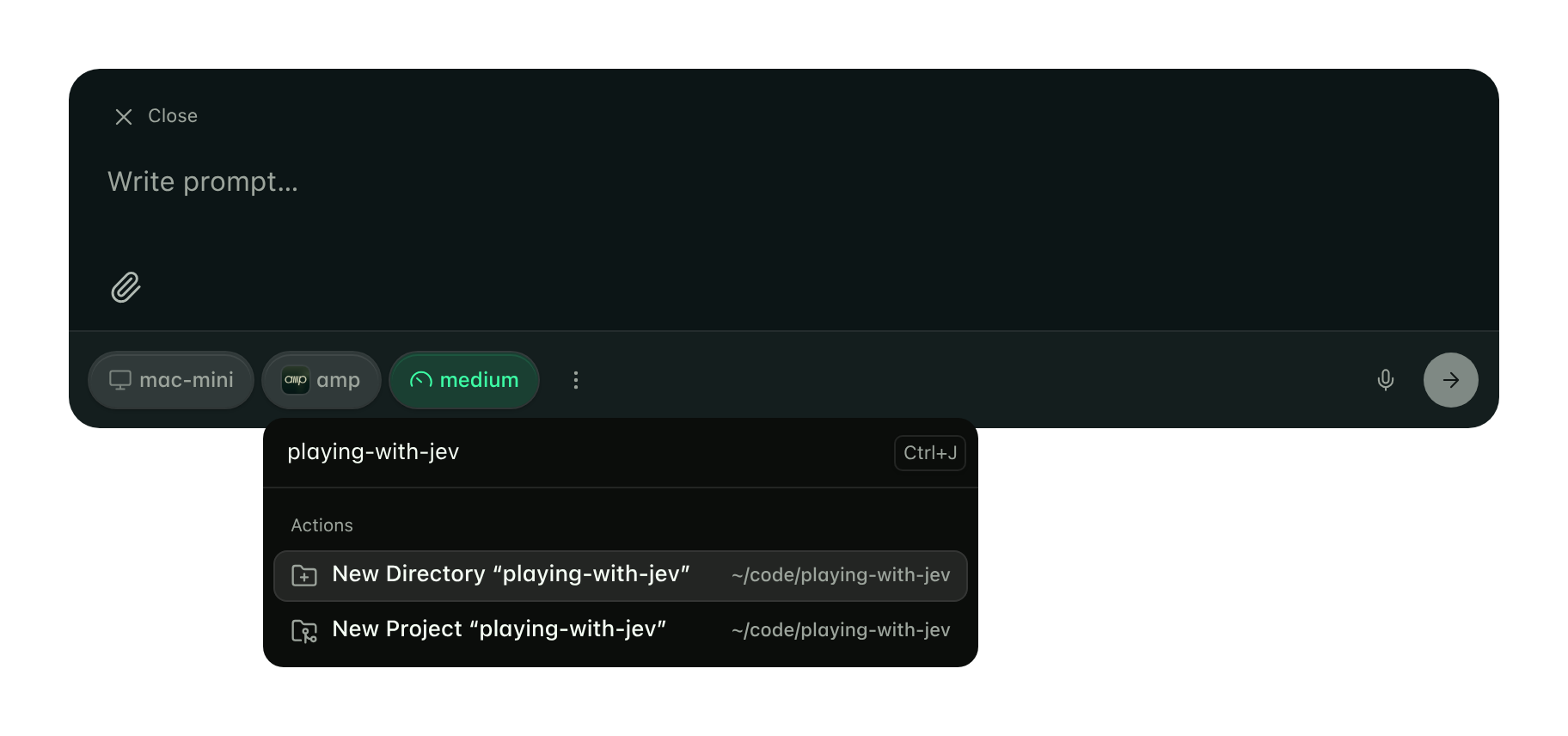
New Directory creates an empty folder on the runner’s machine. It does not initialize Git or create an Amp project. Use it for work that does not need a repository yet.
New Project creates an Amp-hosted project with the name you typed. It also
creates the folder on your runner, initializes a Git repository there, and sets its origin to the new project’s repository. It does not create a GitHub repository or push your files.
Both actions create the folder directly inside the directory where you started the runner.
Selecting a different folder in the picker does not change that parent directory. In the
screenshot, the destination is ~/code/playing-with-jev. You can use the new folder
immediately without restarting the runner or adding a --dir flag.
Create a Worktree
When several threads should work in the same repository at the same time, give each one its own Git worktree. A runner can create the worktree for you from ampcode.com, so the thread starts in a fresh checkout and your main checkout stays as it is.
In the directory picker, every Git checkout the runner serves offers New Worktree next to Current. Press Tab on the highlighted repository, click New Worktree, or tap it on a phone.

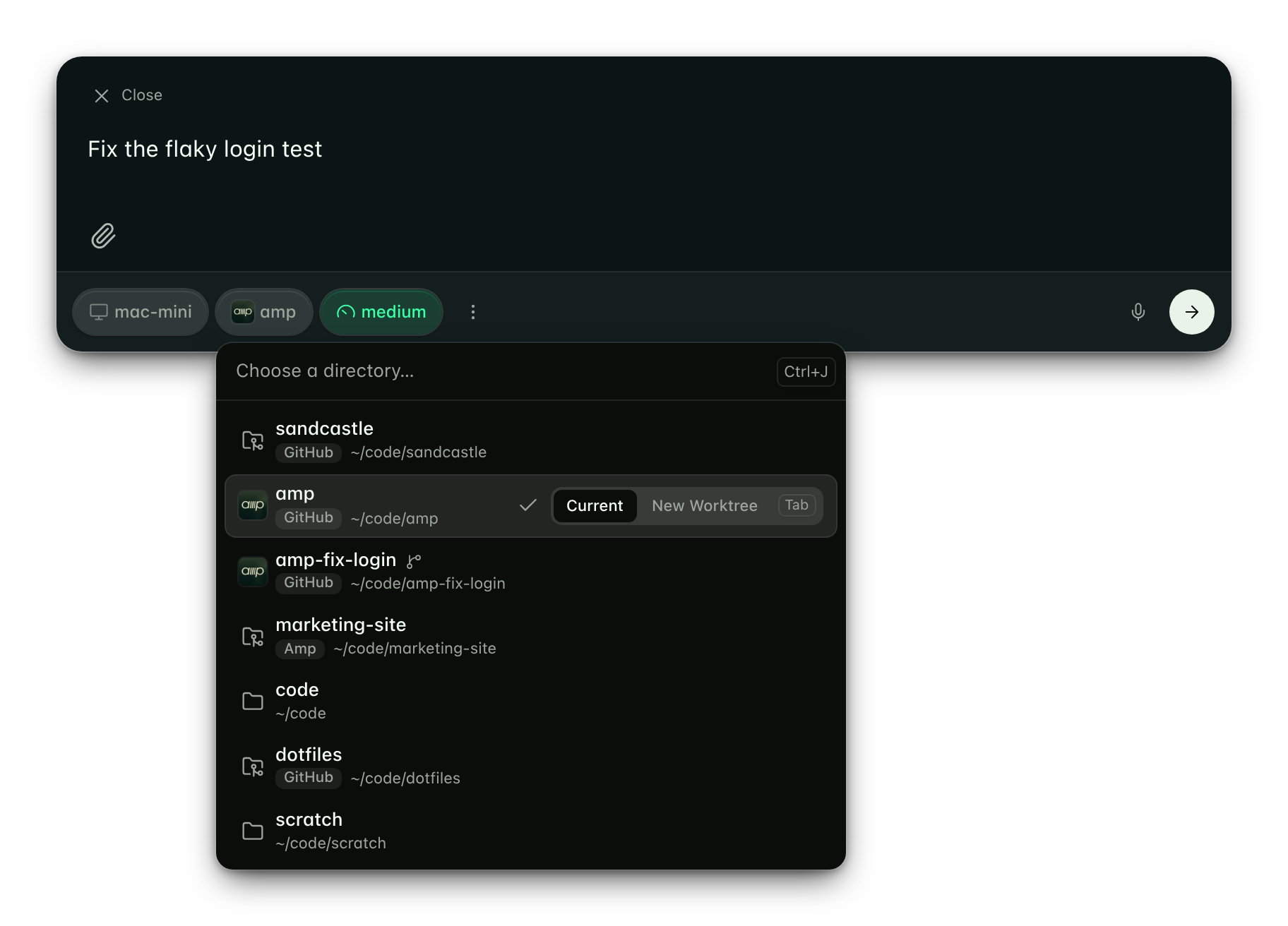
Then name the worktree. The form suggests a name from your prompt and shows what the runner will create before you confirm:

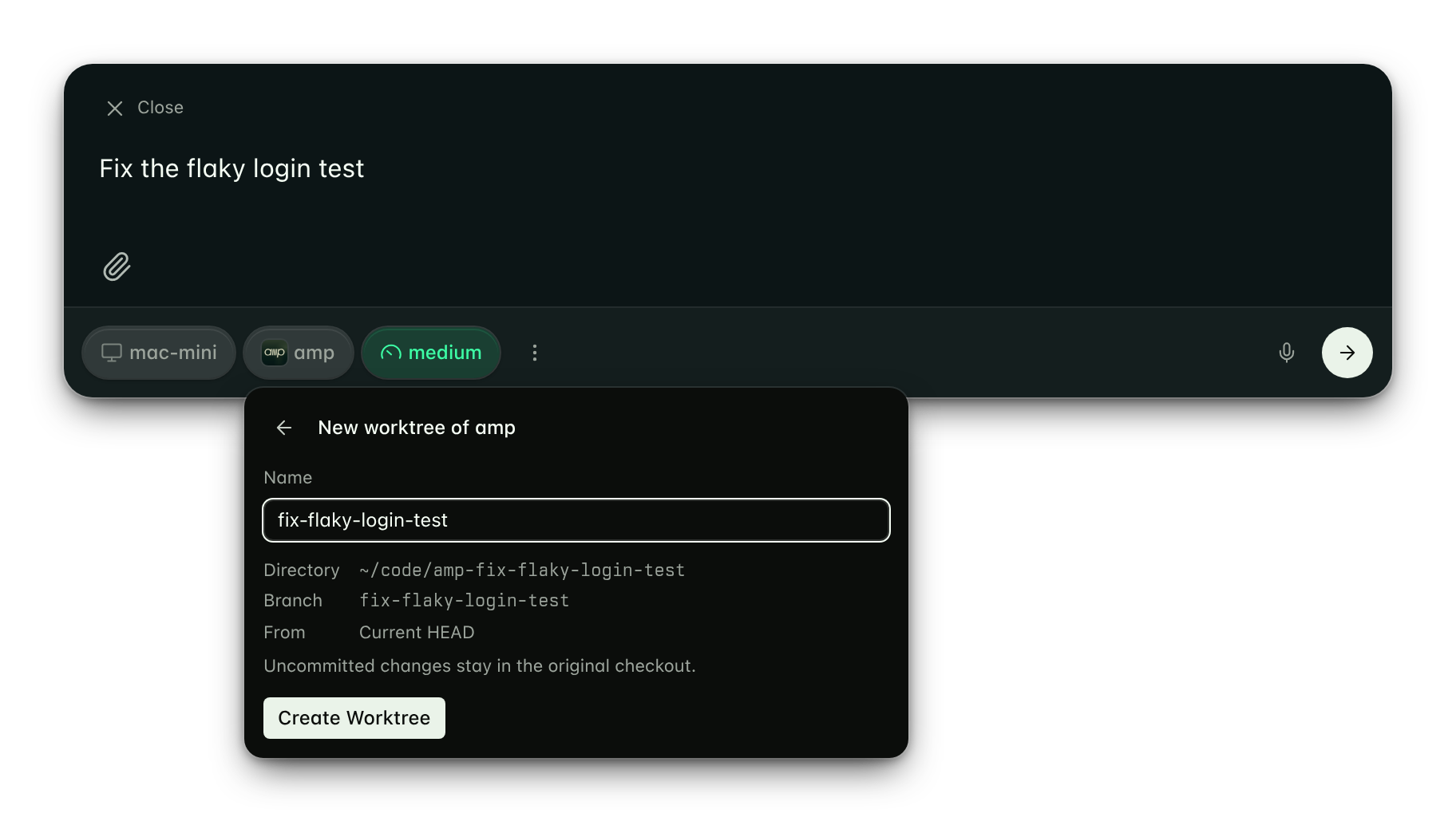
Create Worktree runs git worktree add on the runner’s machine:
- The worktree is a sibling of the repository named
<repository>-<name>. For~/code/ampand the namefix-flaky-login-test, that is~/code/amp-fix-flaky-login-test. - It checks out a new branch with the same name. The runner fetches the current branch’s configured upstream first. If the current branch is behind, the new worktree starts at that latest commit. Local commits ahead of the upstream are preserved.
- Uncommitted changes stay in the original checkout.
- The runner serves the new directory immediately and the picker selects it, marked with a branch icon. Submitting the prompt starts the thread there.
The original checkout’s branch and files stay unchanged. If the local and remote branches
have diverged, merge or rebase them before creating a worktree. A failed fetch stops creation
rather than using an old commit. Branches without an upstream and detached checkouts use
their current HEAD without fetching. This requires an updated runner.
Names may contain letters, numbers, hyphens, and underscores, and must start with a letter or number. If the branch or the directory already exists, creation fails and nothing is overwritten; the name stays in the form so you can change it.
Worktrees can only be created from a main Git checkout. A bare repository or a linked worktree does not offer New Worktree. Worktrees stay on disk after the thread ends unless you remove them as described next.
Agents can create worktrees too. Puck and threads that use the create_thread tool pass executor: "runner", the runner_id, and a worktree name; the runner creates the
worktree the same way and the new thread starts in it.
Archive a Thread and Remove Its Worktree
A thread that runs in a worktree the runner created has an extra action, Archive and Remove
Worktree, in the thread’s menu, in the command palette, and in the context menu of the
thread in the sidebar. After you confirm, Amp archives the thread, then asks the runner to run git worktree remove and delete the branch. The directory disappears from the picker.
Removal never forces anything:
- A worktree with uncommitted or untracked changes is kept, and the toast tells you why.
- A branch with commits that have not been merged yet is kept.
- If the runner is offline, the thread is still archived and the worktree stays on disk.
Unarchiving the thread does not recreate the worktree.
Agents can do the same: ask the agent to archive the thread and remove its worktree. The default Ship prompt asks for this as its last step when the
thread runs in a worktree the runner created. The same rules apply. The thread is already
archived at that point, so if the runner keeps the worktree, the thread does not say why. The
worktree stays on disk, and you can remove it with git worktree remove.
Secrets & Env Vars
By default, threads on a runner see only the environment variables of the runner process. That
is the environment of the shell or service that started amp --no-tui. To change a variable,
you have to change it on the machine and restart the runner.
But a runner can also use the Secrets & Env Vars that you configure on ampcode.com.
This is the same set of variables that orbs get. It lets you manage the environment of a runner from the web or the macOS app, e.g., to give a runner on a remote machine a new API key without logging in to that machine.
This is off by default. Turn it on with the --amp-env flag:
amp --no-tui --amp-envSetting amp.runner.env.enabled to true in the runner’s settings file
does the same without the flag. Either one enables it.
How It Works
Every time a thread starts on the runner, the runner asks ampcode.com for the variables that apply to that thread and adds them to the environment of the shell commands and the stdio MCP servers that the thread runs. While threads run in a directory, the runner asks again every 30 seconds, so a variable you change on ampcode.com reaches running threads too. The variables are sent only to the runner that serves the thread, and only for the directory the thread runs in.
Variables come from four places. When the same variable is set in more than one place, the value from the place higher in this list wins:
- Your personal Secrets & Env Vars on ampcode.com.
- The project’s Secrets & Env Vars, for the project that matches the thread’s directory.
- The workspace’s Secrets & Env Vars.
- The environment of the runner process.
So a project variable replaces a variable of the same name that the runner process already had, and a personal variable replaces both. Variables that exist only in the runner process stay as they are.
What to Expect
- You do not need to restart the runner after you change a variable on ampcode.com. Threads already running in that directory get the new value within 30 seconds, and the next thread that starts there gets it right away. A shell command that is already running keeps the old value.
- The variables are set per served directory. The most recent thread to start in a directory sets the environment for every thread in that directory.
- MCP servers and plugins started for a directory also get these variables. When the variables for a directory change, the runner restarts the directory’s MCP servers and plugins so that they start with the new values.
Share a Runner with Your Workspace
A runner can serve the other members of your workspace, not just you. That is useful for a machine with hardware or access the rest of the team needs, e.g., a GPU machine or a Mac that builds and signs your app.
Start the runner with --share:
$ amp --no-tui --runner-id macos-builder --shareBefore the runner starts, it prints a warning that workspace members will be able to run code on
the machine as you. The runner is shared with your workspace for as long as it runs. To stop
sharing it, restart it without --share; this also turns off multiplayer on every thread that
was created on it, so other members lose access to your machine right away. Every member of the
workspace sees it in the location picker on ampcode.com under Shared Runners, with your name
and avatar. The picker also shows how many threads the runner is running, counting every
member’s threads.


How It Works
- When another member picks your runner, Amp creates the thread as their thread and your runner runs it. Your runner gets access to that thread only.
- Threads on a shared runner are always visible to the whole workspace. Your workspace’s default thread visibility must be set to the workspace for members to create them.
- Other members see the directories your runner serves, but not your threads on it.
- The thread owner can turn on multiplayer for a thread on a shared runner, so other workspace members can prompt it and use its terminal and files. Sharing a runner does not turn on multiplayer by itself.
- With
--amp-env, a shared runner adds the workspace and project Secrets & Env Vars, but not your personal ones. This also applies to your own threads on the runner. - Creating directories, projects, and worktrees on a shared runner is not supported. Other members pick from the directories it already serves.
Caution! Achtung! Attention! Attenzione!
- Threads from other members run on your machine as the operating-system user that started the runner. They can read and change that user’s files and use its credentials and logins. Only share a runner with people you trust to run code on that machine.
- Threads can work in the same directory at the same time and overwrite each other’s changes.
- Stopping sharing does not undo changes that threads already made, and it does not stop programs they already started on the machine.
Turn Off Runner Sharing for a Workspace
Workspace admins can turn off Allow Members to Share Runners under Member Settings in the workspace settings. While it is off:
- Starting a runner with
--sharefails with an error that your workspace admin has disabled sharing runners. Start it without--shareto use it only yourself. - Runners that were already shared stop being shared right away. Members no longer see them under Shared Runners and cannot start new threads on them, multiplayer is turned off on the threads created on them, and threads already running on them lose access to the runner within five minutes.
Turning the setting back on does not share those runners again. Their owners must restart them
with --share.
Keep a Runner Updated
A long-running amp --no-tui runner updates itself. It checks for a new release about once an
hour and installs it. Once no thread is running on it, it restarts into the new version, at most
once every 12 hours. The restart keeps the runner ID, the served directories, and the other
command-line flags. If threads stay attached for a day, the runner restarts once none of them is
in the middle of a turn.
Set amp.runner.autoUpdate.enabled to false to turn this off. Setting amp.updates.mode to "disabled" also turns it off. Runners
installed with Homebrew report the new version but do not install it; update them with brew and restart the runner.
Runners vs. Orbs
Runners and orbs are two different ways to give an agent a machine.
An orb is a machine that Amp creates for a thread. You can start as many orbs as you have tasks, and each one is separate from the others. You pick its size when you create the thread. When the agent is done and you stop using the thread, the orb goes to sleep, and a sleeping orb costs nothing. It wakes up again when you send the next message, with your files and services still in place. You never set up, update, or maintain the machine.
A runner runs on a machine you already have. You start amp --no-tui on it, and Amp creates
threads there with the directories, tools, and logins that are on that machine. Amp does not create,
size, pause, or wake the machine. The runner is available while the process runs and the
machine is on, and every thread you create on it shares that one machine.
Use orbs when you want a fresh machine for every task. Use a runner when the work has to happen on a specific machine, e.g., one with hardware or network access that an orb cannot have.
Inside a thread, runners support some of what orbs support:
| Feature | Runner Support |
|---|---|
| Lifecycle | Amp pauses an orb when it is idle and wakes it when you need it again. A runner runs on a machine you control, and Amp does not start, stop, or pause that machine. |
| Creating Threads | A runner creates threads on its own machine, in the directory where it was started or any directory it serves. |
| Changes | Available automatically when the runner directory is a Git or Jujutsu checkout. No runner flag is needed. |
| Files | Available automatically while the runner is connected. It browses the runner directory, and no runner flag is needed. |
| Terminal | Available when you start the runner with --remote-control-terminal. Restart the runner with this flag, then reload the thread if it is disabled. |
| Portal | Not supported on runners. Only orbs have portals. |
| Desktop | Not supported on runners. Only orbs have a desktop. |
| Multiplayer | Supported on shared runners only. Threads on your own runner cannot be made multiplayer. |
Troubleshoot a Runner
- If the runner does not appear in the location picker, confirm that
amp --no-tuiis still running and signed in to the same Amp account as the web app. - If Changes is unavailable, start the runner inside a Git or Jujutsu checkout.
- If Files cannot load, confirm that the runner is connected and can still read its working directory.
- If Terminal says access is disabled, restart the runner with
--remote-control-terminal, then reload the thread page. - If you need Portal, create the thread in an orb. There is no runner setting that enables this view.
TUI as Runner
You can turn every interactive Amp TUI into a runner too by adding this setting:
// ~/.config/amp/settings.json

{
	"amp.remoteThreadCreation.enabled": true
}
You can also use the command amp: enable remote creation of threads to turn it on. Each TUI
accepts new threads in the directory where you started it.